Get Started with Quick Start
About Quick Start
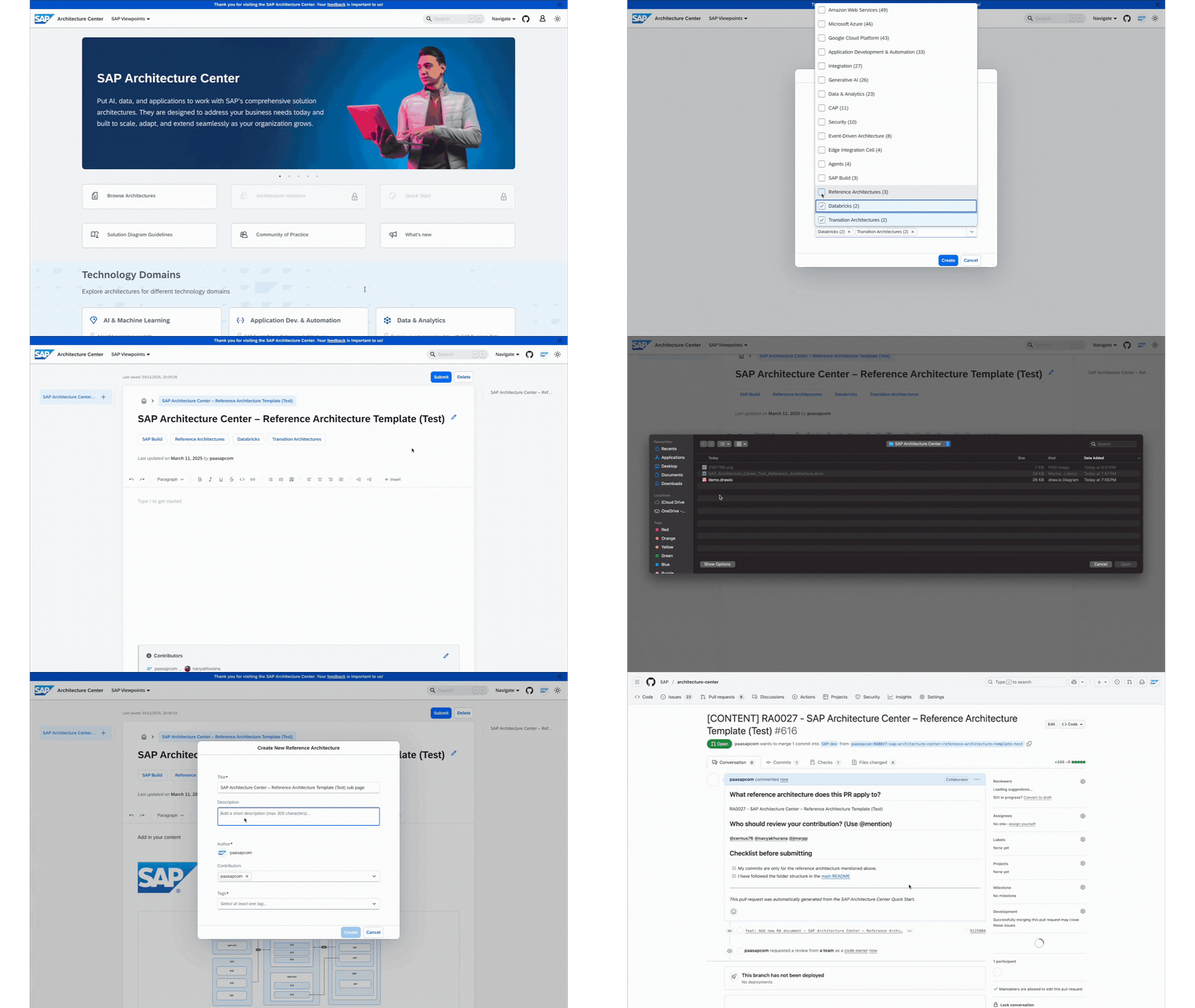
Quick Start is a no-code architecture editor designed to help users quickly publish reference architectures without using command-line tools.
It enables contributors to:
- Log in using their GitHub account
- Create an architecture from scratch using the intuitive rich-text editor or upload an existing word document which is automatically converted to Markdown format.
- Directly add text, images, and architecture Draw.io diagrams in an intuitive editor
Behind the scenes, Quick Start automates repository forking, front-matter generation, and pull request creation—significantly reducing manual effort and accelerating the publishing process.
How to Contribute
Step 1: Log in with GitHub
- Click on the user icon in the top-right corner of the taskbar.
- Select Login with GitHub.
- During login, you will be prompted to authorize the SAP Architecture Center by SAP to access your GitHub account.
This authorization is required to enable Quick Start to:
- Fork the repository
- Create pull requests
- Automatically pre-fill author details
Once authorized, the Quick Start tile will be enabled.
Step 2: Create a New Architecture
- Navigate to the Quick Start section.
- A dialog box will appear prompting you to enter:
Title– The name of your architectureDescription– A short overview of your architectureAuthor– Automatically filled with your GitHub usernameContributors– By default includes you; you can add other GitHub usernamesTags– Choose relevant tags from the provided dropdown list
These details can be edited later in the editor as well.
- Click Create to proceed.
Step 3: Using the Editor Interface
Once created, the architecture editor will open.
Here are the main features and tips to get started:
- Type
/to access the toolbar options which helps in inserting components like text blocks, headings, images, .drawio diagrams and files. - You can upload Draw.io diagrams or images either from the toolbar or using the
/command. - Navigate with the Table of Contents which is automatically generated on the right-hand side of the editor based on your document’s headings, allowing easy navigation across large architectures.
- To add content, simply type in the editor or click Insert File to upload your architecture document.
Note
Supported file type:
.docx(MS Word files).
Uploaded files are automatically converted to Markdown during submission. - To edit your architecture front-matter:
- Click the edit (pencil) icon on the top-right corner to modify the front matter (title, description, tags, etc.).
- To edit contributors, scroll to the end of your architecture page and click the edit (pencil) icon in the contributors section.
- To add subpages, click the “+” button in the left sidebar and follow the same creation steps.
- Quick Start auto-saves your progress locally in the browser, not on the server.
- Clearing cache, using incognito mode, or switching devices can result in loss of unsaved work.
Step 4: Submit for Review
Once your architecture is ready:
- Click Submit (top-right corner).
- Quick Start will automatically:
- Process all uploaded content (images, diagrams, and documents) into the correct Markdown format.
- Maintain the correct folder structure
- Manage your front matter metadata
- Create a Pull Request for review
Your contribution will then go through the standard review and approval process.